Edit Gemini Notebook Outlines Before Rendering Slides or Videos
Google adds a manual review step to Gemini Notebook, letting users edit outlines and adjust styles before the final slide deck or video is rendered.
Key points
- Gemini Notebook now includes a review toggle for slide decks and video overviews.
- Users can edit outline notes and producer notes before the artifact is generated.
- The feature rolls out globally to all users over the coming week.
Google has updated Gemini Notebook to let users review and edit content plans before the final output is created. This change applies to both slide decks and video overviews, giving creators more control over the structure and style of their work. Previously, the tool would generate the final artifact immediately after the initial prompt, leaving little room for mid-process adjustments. Now, users can intervene before the rendering stage begins.
In plain English
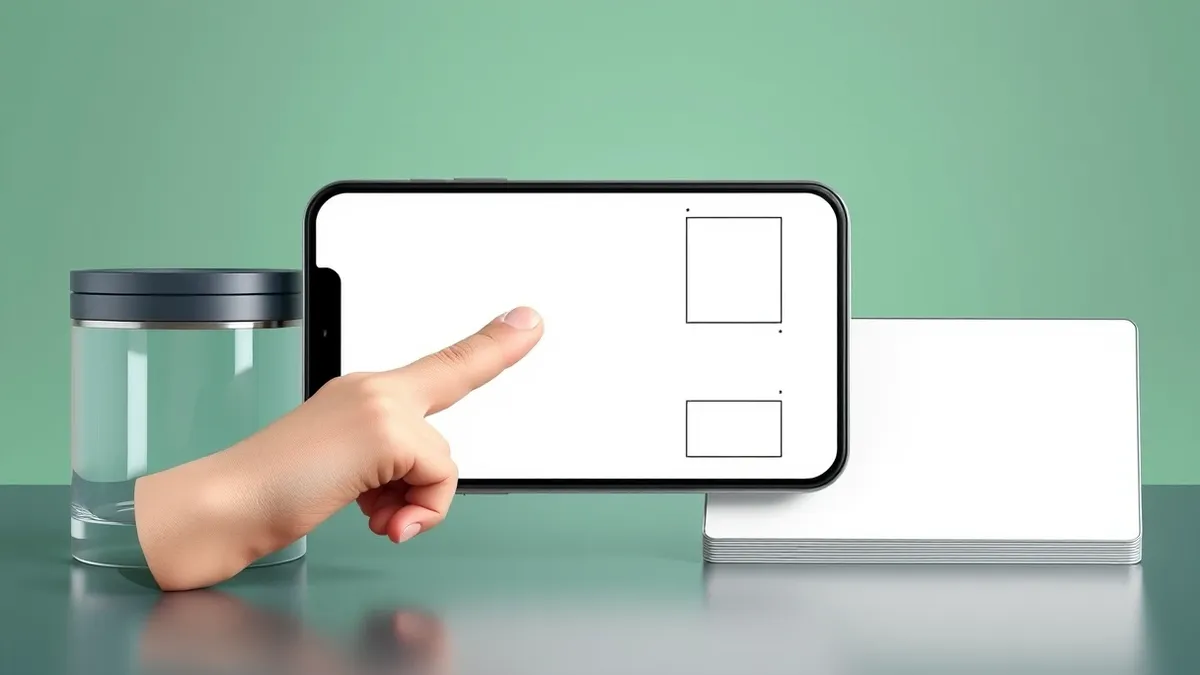
The new feature introduces a pause between the initial request and the final product. Instead of jumping straight to a finished slide deck or video, the system now presents a plan for your approval. You can look at the proposed topics, check the visual style, and make changes. If you are happy with the plan, you click a button to proceed. If you want changes, you can ask for them, such as adding a summary or reordering scenes. This makes the process more collaborative.
The background
Gemini Notebook has long been used by students and professionals to summarize coursework and create presentations. As Vector Update reported on October 17, 2026, Google added sixty-second video summaries and expanded quiz types to help students review materials more efficiently. Those features focused on consumption and study aids. The current update shifts focus to creation, specifically addressing user feedback that asked for more creative control during the generation of slide decks and video overviews.
What changes now
Users can now start a chat and ask for slides or a video. The notebook will suggest topics based on your sources. You can then steer the content and guide the visual style. For greater control, you can enable the new Review toggle. This allows you to click “Review outline notes” for slides or “Review producer notes” for videos. You can provide additional feedback, such as requesting an executive summary or swapping scene orders. Once satisfied, you select “Proceed” to produce the final artifact.
Key terms explained
An artifact is the final digital file, such as a presentation or video, that the AI creates. The outline notes represent the structural plan for slides, including topic order and key points. Producer notes serve a similar function for videos, detailing scene sequences and visual cues. Teams usually check these plans to ensure accuracy before committing resources to final production. Reviewing these drafts helps catch errors in logic or tone early. It allows users to align the output with specific branding or educational goals. This step reduces the need for complete regeneration if the initial direction was slightly off.
What to do and how to stay safe: Gemini Notebook
- Test the new review toggle with a low-stakes project to understand the workflow before using it for critical presentations.
- Check your source materials carefully before asking the notebook to suggest topics, as the AI relies on those inputs for its initial plan.
- Use the review stage to verify that the suggested visual style matches your organization’s branding guidelines.
- Monitor the global rollout timeline, as features may appear at different times depending on your region over the upcoming week.
Step-by-step guide: Stop AI Chatbots Leaking Sensitive Business Data
General security guidance from the Vector Update newsroom. It is not confirmed advice from the organisations named in this story.
Frequently asked questions
Can I still generate slides and videos without reviewing the plan?
Yes, you can skip the review toggle and have the notebook generate artifacts as usual if you prefer a quick output.
How do I access the review feature for video overviews?
Enable the Review toggle and click “Review producer notes” in the studio panel to see the plan before rendering.
When will this feature be available to users?
These co-creation capabilities are rolling out globally to all Gemini Notebook users over the upcoming week.