Enable or Disable Samsung’s Auto Blocker on Galaxy Phones with One UI 6.1.1 or Later
Samsung’s built-in security tool blocks risky apps and USB commands by default on newer devices. Learn how it works and when to adjust settings.
Key points
- Auto Blocker is enabled by default on Galaxy phones shipping with One UI 6.1.1 or later.
- The feature blocks app installations from outside official stores and filters malicious USB commands.
- Epic Games sued Samsung in 2024, arguing the feature made third-party app installation too difficult.
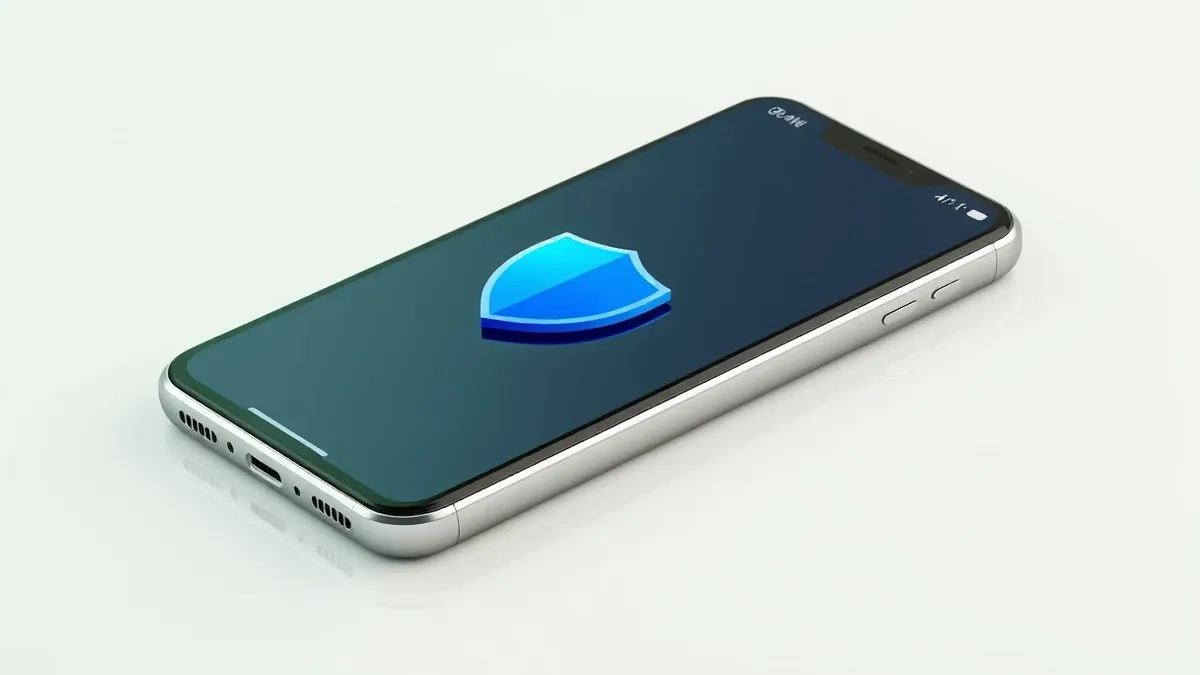
Samsung Galaxy phones now include a background security feature that automatically blocks suspicious apps, messages, and USB commands to protect your device from common digital threats.
In plain English
Auto Blocker is a built-in security tool designed to stop malware before it reaches your phone. It works silently in the background, filtering out risks without requiring you to take any action. The system scans incoming data and blocks items that appear dangerous, such as apps from unknown sources or commands sent through a charging cable.
The background
This feature is available on Galaxy devices running One UI 6.0 or later. According to Engadget, it was enabled by default on devices that shipped with One UI 6.1.1 or newer versions. The tool primarily targets apps installed outside the Google Play Store or Samsung Galaxy Store, which are common entry points for malicious software. It also blocks harmful commands transmitted via USB cables, a risk when using public charging stations.
What changes now
Auto Blocker also scans images received in messaging apps like Samsung Messages, Google Messages, Messenger, WhatsApp, and Telegram. It filters out pictures suspected of containing malicious code. For users seeking stronger protection, Samsung offers a "Maximum restrictions" mode. This setting blocks device admin apps, disables 2G network connections, prevents auto-reconnection to unsecured Wi-Fi, and removes location data from shared photos.
Key terms explained
Security features like Auto Blocker rely on predefined rules to identify threats. Teams usually configure these tools to block known malicious patterns while allowing safe traffic. Check whether your device settings match your security needs. If you use specialized software or developer tools, you may need to adjust restrictions. Understanding how these filters work helps you balance convenience with protection. Regularly review your security settings to ensure they align with your current usage patterns.
What to do and how to stay safe: Samsung
- Check your device settings to see if Auto Blocker is enabled and review its current configuration.
- If you install apps from outside official stores, consider whether the default blocking rules interfere with your workflow.
- Monitor your messaging apps for any issues with receiving images, as the filter may block suspected malicious content.
- Once the vendor provides an update, review any changes to the feature’s behavior or new security options.
General security guidance from the Vector Update newsroom. It is not confirmed advice from the organisations named in this story.
Frequently asked questions
Does Auto Blocker affect apps from the Google Play Store?
No, Auto Blocker primarily blocks app installations from outside the Google Play Store or Samsung Galaxy Store.
Can I turn off Auto Blocker if it interferes with my work?
Yes, users can choose to keep it on, turn it off, or adjust settings to find a balance between security and convenience.
Did Epic Games sue Samsung over this feature?
Yes, Epic Games filed a lawsuit against Samsung in 2024, arguing that Auto Blocker made downloading third-party apps unnecessarily difficult.