Prevent Android Auto volume spikes by disabling the new autoplay toggle in settings
A new setting in Android Auto lets drivers stop music from blasting when their phone connects to the vehicle's system.
Key points
- Android Auto now includes a toggle to disable automatic audio playback upon connection.
- The feature can cause sudden noise, privacy concerns, or distractions for drivers and passengers.
- If the toggle fails, users may need to adjust Bluetooth settings or connection methods.
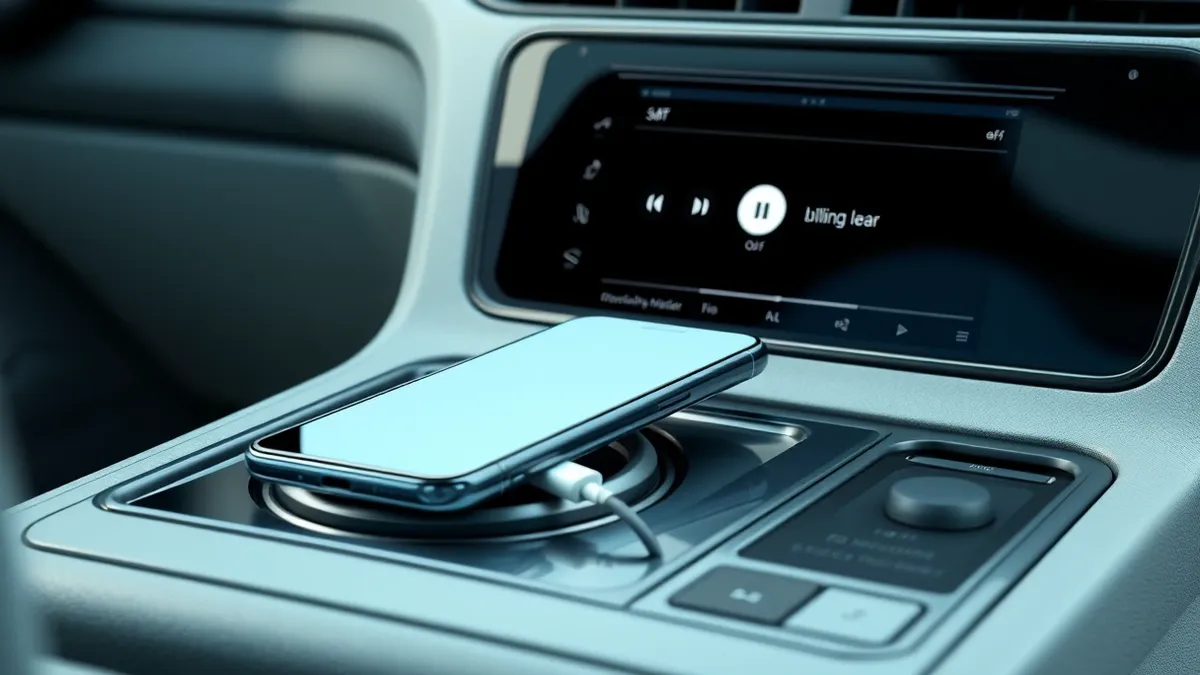
Android Auto users can now easily stop their car stereos from blasting music the moment their phones connect to the vehicle. This change addresses a long-standing complaint about unexpected audio playback that occurs when drivers start their cars.
In plain English
When you plug your phone into your car or connect wirelessly, Android Auto often resumes the last media you were listening to. This happens at the volume level you last set, which can be startling. The system picks up podcasts, audiobooks, or music exactly where they left off, without asking for permission first.
The background
Previously, stopping this behavior was difficult and required complex workarounds or extra applications. Users had to jump through hoops to prevent the sudden noise. Engadget reported that this autoplay quirk has been a source of frustration for many drivers who prefer a quiet start to their commute.
What changes now
Google has added a simple toggle in the Android Auto settings to control this behavior. Users can now disable the "Start music automatically" feature. This single step tells the system not to resume playback immediately upon connection, solving the issue for many drivers without needing third-party tools.
Key terms explained
System settings allow users to control how applications behave on their devices. Toggles are simple switches that turn features on or off. Connection handshakes are the initial exchanges of data between two devices, like a phone and a car, to establish a link. Understanding these basics helps users manage how apps interact with hardware.
What to do and how to stay safe: Android Auto
- Open your phone's settings and navigate to the Android Auto section to find the startup options.
- Locate the toggle for automatic music playback and switch it off to prevent sudden audio.
- If the issue persists, check your Bluetooth connections and consider using a USB cable instead.
- Monitor your media apps to ensure they are not triggering playback independently of the car system.
General security guidance from the Vector Update newsroom. It is not confirmed advice from the organisations named in this story.
Frequently asked questions
How do I stop Android Auto from playing music automatically?
Go to Settings, then Connected devices, then Android Auto, and turn off the Start music automatically toggle in the Startup section.
What if turning off the toggle doesn't stop the music?
The issue might be at the Bluetooth level; try removing your phone from the car's Bluetooth memory and reconnecting via USB only.
Why does Spotify keep playing even after I disable autoplay?
Other paired Bluetooth devices, like headphones or speakers, can affect autoplay behavior, and Spotify users have reported this issue in community forums since 2022.