Android Malware Removal: 7 Mistakes That Leave Threats Behind
Factory resetting your phone does not erase malware if the device holds administrative privileges or if you restore from an infected backup.
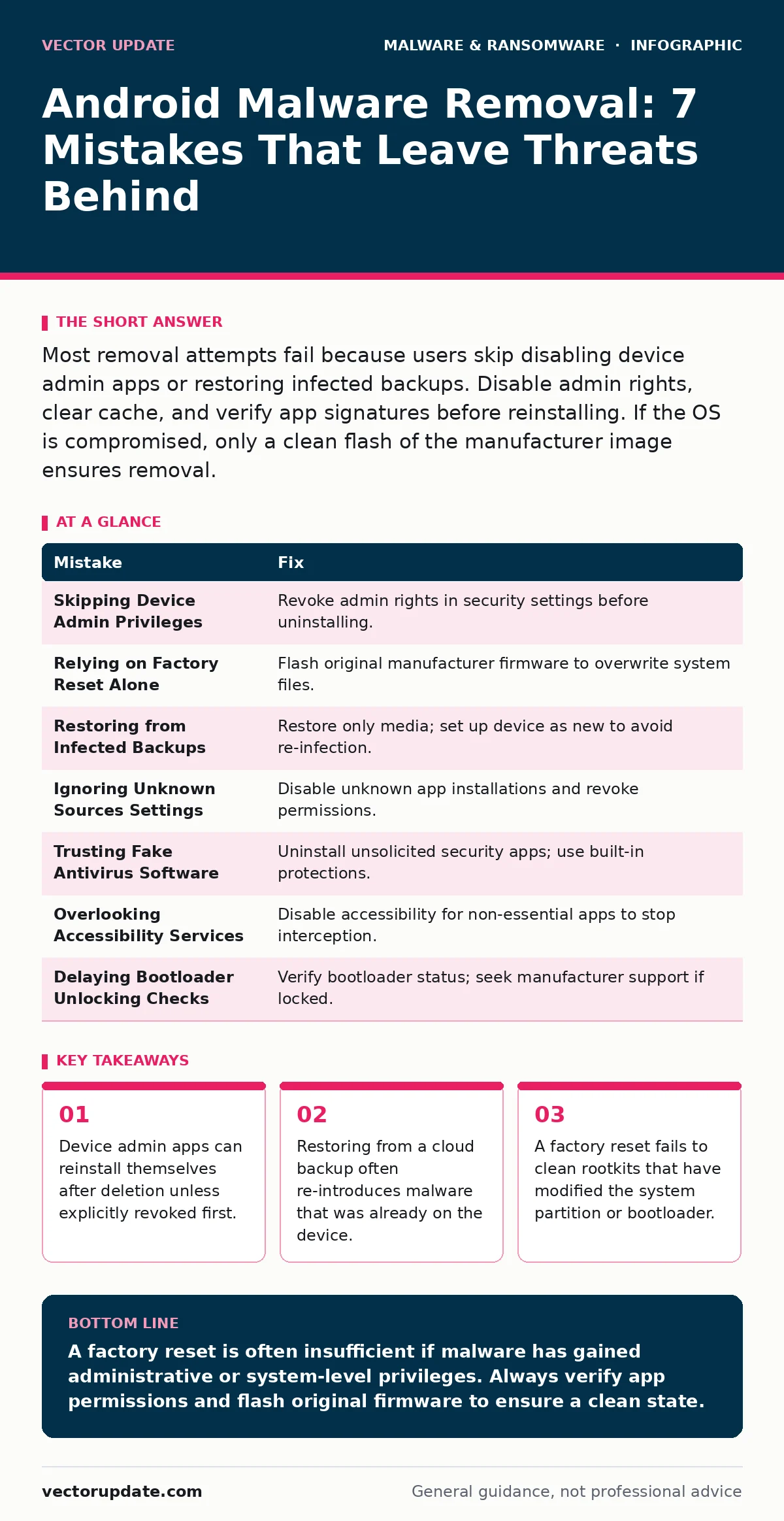
Most removal attempts fail because users skip disabling device admin apps or restoring infected backups. Disable admin rights, clear cache, and verify app signatures before reinstalling. If the OS is compromised, only a clean flash of the manufacturer image ensures removal.
Mistake 1: Skipping Device Admin Privileges
Android grants special permissions to apps that manage security features like remote wipe or screen lock. Malware often requests these rights to prevent you from uninstalling it. If you try to remove the app while it holds these privileges, the uninstall button will be grayed out or the app will reinstall itself immediately.
Why it hurts:
The malware remains active and hidden. Even if you force-stop the process, the admin rights allow it to restart in the background. This persistence mechanism turns a simple trojan into a persistent threat that survives standard cleanup attempts.
The fix:
Navigate to your security settings and locate the list of device administrators. Find the suspicious app and toggle off its admin rights. Once revoked, the app loses its elevated status. You can then proceed with standard uninstallation. Check this list before every major removal step.
Mistake 2: Relying on Factory Reset Alone
Many users believe a factory reset wipes everything. It wipes the user data partition, but it does not always touch the system partition or the bootloader. If the malware has gained root access or modified system files, a reset may leave the core infection intact.
Why it hurts:
The malware survives the wipe. It can reactivate as soon as the system boots. You are left with a clean-looking interface that is still compromised at the kernel level. This gives you a false sense of security while your data remains exposed.
The fix:
Flash the original manufacturer firmware image. This process overwrites the entire system partition, not just user data. It ensures that any modified system files are replaced with verified copies. This is more thorough than a reset and is necessary when rootkits are suspected.
Mistake 3: Restoring from Infected Backups
Cloud services often back up app data and settings. If you backed up your phone while malware was present, that backup contains the malicious configuration or data. Restoring from this backup after a clean reset reintroduces the threat.
Why it hurts:
You undo your own cleanup effort. The malware returns with its settings intact. This cycle can repeat indefinitely if you do not identify the source of the infection in the backup data. It also risks infecting other devices linked to the same cloud account.
The fix:
Do not restore app data from recent backups. Restore only contacts and photos, which are less likely to contain executable code. Set up the device as new and manually reinstall apps from verified sources. Monitor for suspicious behavior before enabling full backup restoration.
Mistake 4: Ignoring Unknown Sources Settings
Android allows installation from sources other than the official app store. Malware often disables the warning for unknown sources to install silently. Leaving this setting enabled makes your device vulnerable to side-loading attacks.
Why it hurts:
You bypass the store’s security checks. Apps from unknown sources are not scanned for known threats. This opens the door for malicious mobile apps to install without your explicit knowledge. It also makes it harder to track which app introduced the malware.
The fix:
Disable the option to install unknown apps. Review the list of apps that have this permission and revoke it for any app that does not need it. This prevents silent installations and forces you to make a conscious choice for each external app.
Mistake 5: Trusting Fake Antivirus Software
Some malware masquerades as security tools. These fake antivirus software apps claim to find threats but actually install more malware. They often display fake alerts to scare you into paying for a premium version or downloading additional payloads.
Why it hurts:
You give more permissions to the attacker. The fake app may request access to notifications, storage, and accessibility services. This deepens the infection and makes removal harder. It also wastes your time and resources on a solution that is part of the problem.
The fix:
Uninstall any security app that appeared without your direct action. Do not click on alerts generated by these apps. Use the built-in Google Play Protect or a reputable, well-known security framework. Verify the app’s developer and reviews before installing any new security tool.
Mistake 6: Overlooking Accessibility Services
Accessibility services allow apps to read the screen and perform actions on your behalf. Malware uses this to intercept SMS codes, click buttons, and hide its own interface. It is a powerful tool for account takeover fraud and banking theft.
Why it hurts:
The malware can see everything you do. It can read verification codes sent via SMS and enter them into banking apps automatically. This bypasses two-factor authentication. The damage occurs in real-time, often before you notice any unusual activity.
The fix:
Disable accessibility services for any app that does not need them. Review the list of enabled services and turn off any that are unfamiliar. This cuts off the malware’s ability to interact with your screen and intercept sensitive inputs.
Mistake 7: Delaying Bootloader Unlocking Checks
Some advanced malware locks the bootloader to prevent you from flashing new firmware. If the bootloader is locked, you cannot install custom recovery images or verified system updates. This traps the malware on the device.
Why it hurts:
You lose control over the operating system. The malware can persist across reboots and resets. It can also prevent security patches from being applied. This creates a long-term vulnerability that is difficult to resolve without professional help.
The fix:
Check the bootloader status in developer options. If it is locked and you suspect a deep infection, contact the manufacturer for support. Do not attempt to unlock it yourself, as this may void warranties or brick the device. In severe cases, replacing the device may be the only secure option.
| Mistake | Fix |
|---|---|
| Skipping Device Admin Privileges | Revoke admin rights in security settings before uninstalling. |
| Relying on Factory Reset Alone | Flash original manufacturer firmware to overwrite system files. |
| Restoring from Infected Backups | Restore only media; set up device as new to avoid re-infection. |
| Ignoring Unknown Sources Settings | Disable unknown app installations and revoke permissions. |
| Trusting Fake Antivirus Software | Uninstall unsolicited security apps; use built-in protections. |
| Overlooking Accessibility Services | Disable accessibility for non-essential apps to stop interception. |
| Delaying Bootloader Unlocking Checks | Verify bootloader status; seek manufacturer support if locked. |
Key takeaways
- Device admin apps can reinstall themselves after deletion unless explicitly revoked first.
- Restoring from a cloud backup often re-introduces malware that was already on the device.
- A factory reset fails to clean rootkits that have modified the system partition or bootloader.
A factory reset is often insufficient if malware has gained administrative or system-level privileges. Always verify app permissions and flash original firmware to ensure a clean state.
Frequently asked questions
Can I remove malware without losing my data?
Only if the malware is an app with no special permissions. For deeper infections, data loss is likely necessary to ensure complete removal.
Does clearing the cache remove malware?
No. Clearing cache removes temporary files but does not delete the app or its malicious code. You must uninstall the app and revoke its permissions.
How do I know if my bootloader is locked?
Check the developer options menu. If the status shows locked, you cannot flash custom recovery images without unlocking it first.
Is it safe to use my phone after removing malware?
Only if you have verified that all malicious components are gone. Monitor for unusual battery drain or data usage, and change all passwords from a clean device.
How this guide was produced: written by the Vector Update editorial team with AI assistance, checked against the public references listed below, and reviewed when the facts change. See our editorial policy or report an error.