FileVault Disk Encryption: How It Protects Data at Rest
FileVault encrypts storage using hardware acceleration, making full-disk encryption nearly invisible to system performance while securing data against physical theft.
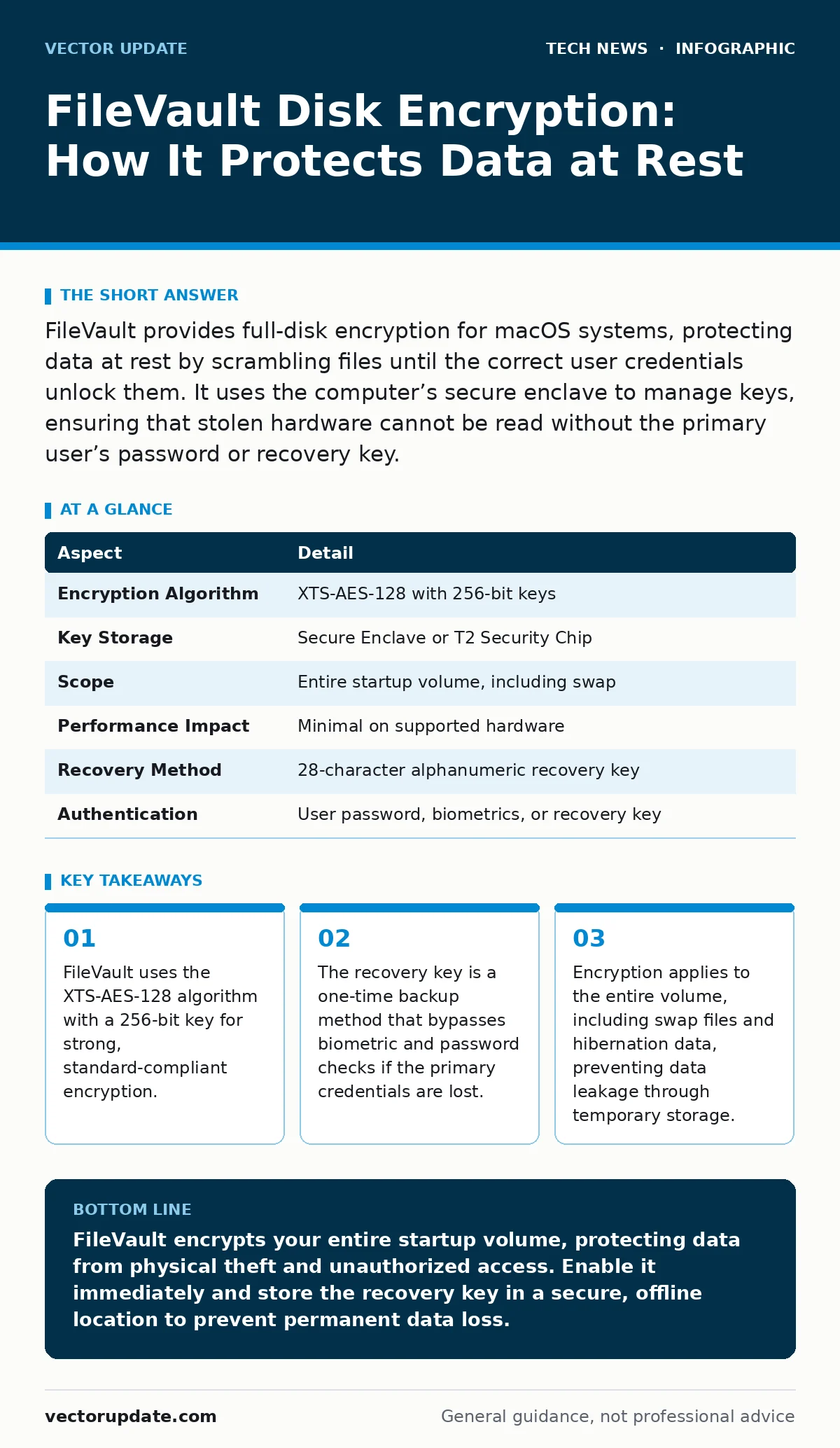
FileVault provides full-disk encryption for macOS systems, protecting data at rest by scrambling files until the correct user credentials unlock them. It uses the computer’s secure enclave to manage keys, ensuring that stolen hardware cannot be read without the primary user’s password or recovery key.
Understanding FileVault Disk Encryption
FileVault disk encryption is a full-disk encryption feature built into macOS that protects your data if the computer is stolen or lost. It works by encrypting the entire startup volume, meaning every file, folder, and system process is scrambled into unreadable data. Without the correct decryption key, the storage drive appears as random noise to any attacker. This protects your information at rest, which is the state of data when it is stored on a drive rather than being actively used in memory.
The system uses the XTS-AES-128 block cipher mode. This is a standard encryption algorithm designed specifically for disk encryption. It combines two 128-bit keys to create a 256-bit effective key strength. The encryption happens at the volume level, not the file level. This means you do not need to select individual files to protect. Once enabled, every write operation to the drive is encrypted before hitting the physical platters or flash memory. Every read operation is decrypted on the fly before the operating system can interpret the data.
Imagine a library where every book is written in a complex code. The librarian holds the only decoder ring. If someone steals the library building, they have the books, but they cannot read a single word. FileVault acts as that librarian. The "code" is the encryption key, and the "decoder ring" is managed by the computer’s hardware. This analogy helps explain why physical access to the drive is not enough to steal the data. The attacker needs the key, which is never stored on the drive in plain text.
| Aspect | Detail |
|---|---|
| Encryption Algorithm | XTS-AES-128 with 256-bit keys |
| Key Storage | Secure Enclave or T2 Security Chip |
| Scope | Entire startup volume, including swap |
| Performance Impact | Minimal on supported hardware |
| Recovery Method | 28-character alphanumeric recovery key |
| Authentication | User password, biometrics, or recovery key |
How The Encryption Mechanism Works
The security model relies on a hierarchy of keys. Your user password does not directly encrypt the disk. Instead, your password unlocks a key stored in the Secure Enclave. This hardware component is isolated from the main processor and operating system. It performs cryptographic operations internally and never exposes the keys to the rest of the system. This design prevents malware or attackers from stealing the keys by dumping system memory.
When you log in, the Secure Enclave verifies your credentials. If they are correct, it releases the volume encryption key to the kernel. The kernel then uses this key to decrypt the disk on the fly. This process is transparent to you and your applications. You do not see encryption happening because it occurs at the storage controller level. The trade-off is that if the Secure Enclave fails or is tampered with, you may lose access to your data. The hardware is the single point of failure for key management.
One non-obvious consequence is that FileVault protects against cold boot attacks more effectively than software-only solutions. A cold boot attack involves freezing the computer’s memory to preserve data after power loss. Because the encryption keys never leave the Secure Enclave, they are not present in the main system RAM. Even if an attacker dumps the RAM, they only find encrypted data fragments. The keys required to make sense of those fragments remain trapped in the hardware.
Who Is Affected By This Protection
FileVault affects every user of a Mac computer, but the implications differ for personal and enterprise users. For personal users, it is a safeguard against physical theft. If you lose your laptop on a train, the thief cannot access your photos, emails, or documents. They can wipe the drive, but they cannot copy it. This protects your privacy and identity. You are affected by the requirement to remember your password or recovery key. Losing these means permanent data loss.
For enterprise users, FileVault is a compliance requirement. Many data protection standards mandate encryption of devices that store sensitive information. System administrators can manage FileVault settings through Mobile Device Management tools. This allows them to enforce encryption across the organization. It also allows them to store the recovery keys in a secure directory service. This ensures that if an employee loses their password, the company can still recover the data. You must balance security with accessibility.
The feature also affects how you handle secondary drives. FileVault only encrypts the startup volume by default. External drives or secondary internal drives are not protected unless you manually enable file-level encryption or use a different tool. This is a common gap in security posture. Users often assume the whole system is protected, but only the primary drive is. You must verify the status of all storage volumes attached to your system.
What To Do About Implementation
Enabling FileVault is straightforward, but verifying it is critical. You should go to System Settings and look for the Privacy & Security section. Find the FileVault option and turn it on. The system will ask you to choose between saving the recovery key with your Apple ID or printing it. You should print the recovery key and store it in a secure physical location. Do not store it in a cloud note or email. If your Apple ID is compromised, the attacker could use it to unlock your computer.
You must test the recovery process. Try to boot the computer and enter the recovery key instead of your password. This ensures the key works and that you know how to use it. It also confirms that the key was saved correctly. This test takes only a few minutes but prevents panic during an actual lockout. You should also check that the encryption is complete. The system status will show "Encrypting" until the entire disk is processed. Do not assume it is done until the status says "On."
Regular audits are necessary for enterprise environments. You should verify that all devices have FileVault enabled. Use management tools to check the status of each machine. If a device is not encrypted, enforce the setting immediately. You should also monitor for attempts to disable FileVault. Unauthorized disabling can indicate a compromise. Set up alerts for changes to the encryption status. This helps you detect insider threats or malicious software trying to bypass security controls.
Common Misconceptions About Encryption
Many users believe that FileVault protects against malware. It does not. FileVault only protects data at rest. Once you log in and the disk is unlocked, malware can read, copy, or encrypt your files just like any other application. You need additional security measures, such as application allowlisting and regular updates, to protect against active threats. FileVault is a shield for theft, not a wall against viruses.
Another misconception is that biometric authentication replaces the need for a password. Touch ID or Face ID unlocks the computer, but they rely on the Secure Enclave. If the biometric sensor fails or is unavailable, you must use your password. The password is the ultimate authority. You should never disable the password requirement. Some users try to use blank passwords for convenience. This is dangerous because it weakens the key derivation process and may expose the system to brute-force attacks.
People often think that FileVault slows down their computer. On modern Macs, this is not true. The cryptographic hardware handles the encryption and decryption tasks. The main processor is not burdened. You will not notice a difference in performance. On older Macs without the T2 chip or Apple Silicon, there might be a slight overhead. However, the security benefit outweighs the minor performance cost. You should not disable FileVault due to unfounded fears about speed.
See also: Biometric Authentication Systems: How They Work and Where They Fail
Integrating With Other Security Measures
FileVault works best when combined with other security layers. You should use strong passwords that are unique to your computer. This prevents attackers from using credentials stolen from other sites. You can integrate biometric authentication for convenience, but keep the password as a backup. This adds a layer of identity verification that is hard to spoof. The combination of something you know (password) and something you are (biometrics) creates a stronger defense.
For remote access, ensure you are using secure protocols. FileVault protects the disk, but data in transit can be intercepted. Use TLS handshake mechanisms to encrypt network traffic. This ensures that your data is protected both at rest and in motion. You should also consider network monitoring to detect unusual activity. If someone tries to access your computer remotely, monitoring tools can alert you. This helps you respond to threats before they cause damage.
If you manage multiple devices, consider using public key infrastructure for managing keys. This allows you to distribute and manage encryption keys securely across your organization. It reduces the risk of key loss and makes it easier to revoke access when employees leave. You should also follow secure software development practices if you build applications that handle sensitive data. This ensures that your software does not inadvertently expose encryption keys or create vulnerabilities.
Key takeaways
- FileVault uses the XTS-AES-128 algorithm with a 256-bit key for strong, standard-compliant encryption.
- The recovery key is a one-time backup method that bypasses biometric and password checks if the primary credentials are lost.
- Encryption applies to the entire volume, including swap files and hibernation data, preventing data leakage through temporary storage.
- Performance impact is negligible on modern Macs due to dedicated cryptographic hardware in the Apple Silicon or T2 chip.
FileVault encrypts your entire startup volume, protecting data from physical theft and unauthorized access. Enable it immediately and store the recovery key in a secure, offline location to prevent permanent data loss.
Frequently asked questions
Does FileVault protect my external hard drives?
No, FileVault only encrypts the startup volume by default. You must manually encrypt external drives using Disk Utility or a similar tool to protect data on those devices.
Can I recover my data if I forget my password?
Yes, if you have the recovery key. You can use the 28-character recovery key to unlock the drive. If you do not have the recovery key, the data is unrecoverable and must be wiped.
Does FileVault slow down my Mac?
No, modern Macs use hardware acceleration for encryption. The performance impact is negligible on devices with Apple Silicon or the T2 Security Chip.
What happens if I sell my Mac with FileVault on?
You must erase the drive before selling. FileVault does not remove encryption; it only locks it. Use the Disk Utility to securely erase the drive and reset the computer to factory settings.
How this guide was produced: written by the Vector Update editorial team with AI assistance, checked against the public references listed below, and reviewed when the facts change. See our editorial policy or report an error.